
# Quick start guide
# Quick Search
Located at the top of the Process Engine is the quick search tool where users can search for applicants with ease.

# Account settings
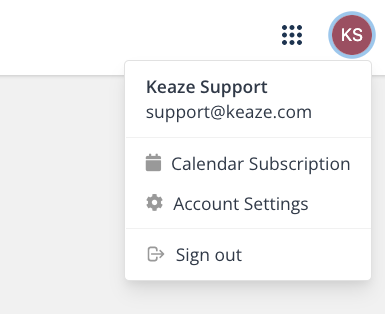
Located in the top right-hand corner are account settings where users can manage their basic details and update their passwords.
# Dashboard
Widgets can be added to the dashboard by selecting the burger bar ( ) located in the top right-hand corner. They can be toggled on or off depending on user preference.
# The Sidebar
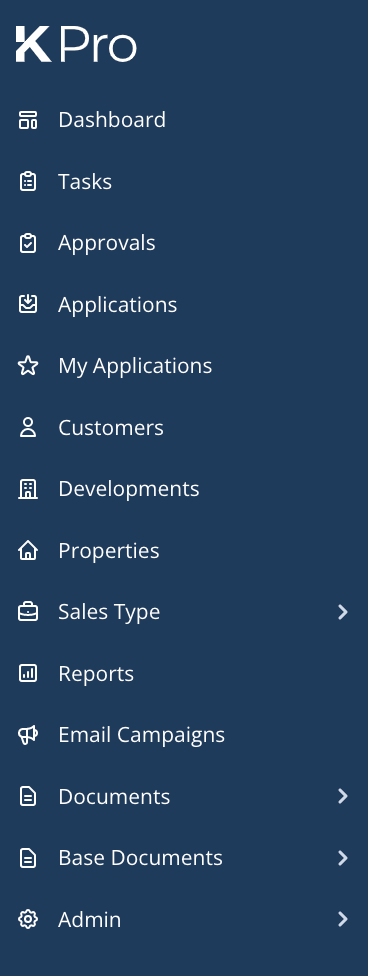
This section will provide a quick overview of the sidebar.
# Tasks
Outstanding task(s) associated with applicants are displayed here. To interact with the tasks, select the Actions button and choose an option such as Preview & Send & View Application.
# Approvals
Located in the approvals section are tasks that need approval from a user with a managerial role on Process Engine.
# Applications
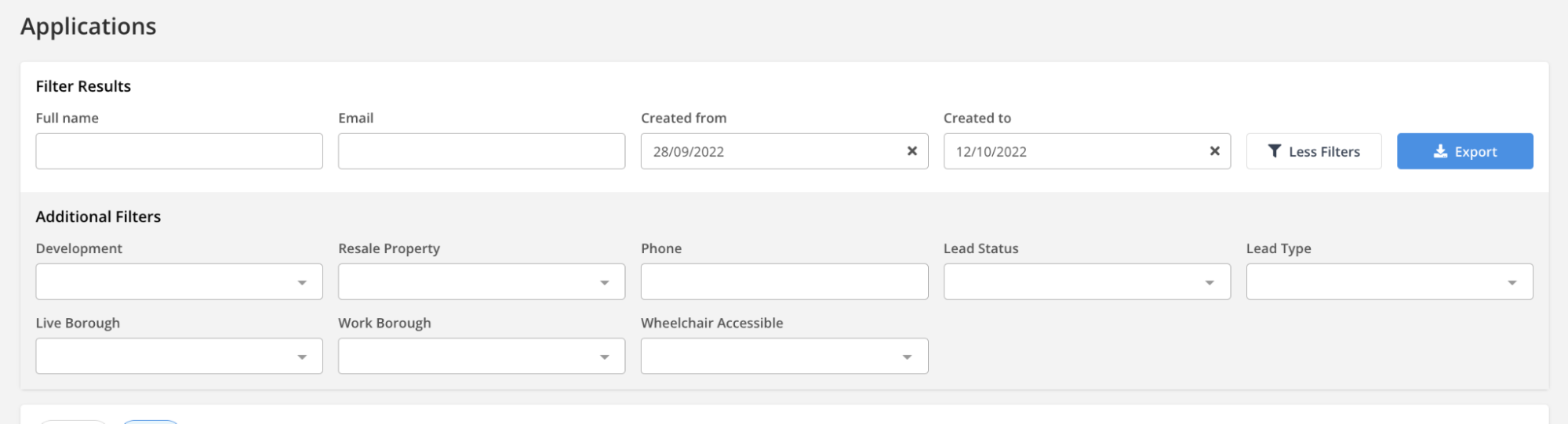
A basic overview of recent applications is displayed here. Additionally, users can use the  button to download a spreadsheet of their current view.
# My applications
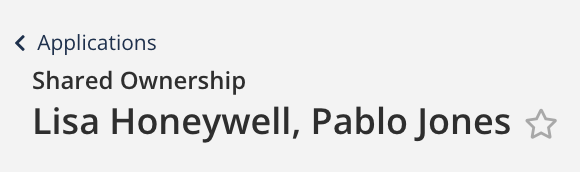
This section contains a list of the applications that have been favourited, for quick access. To add applicants here, select the ☆ icon next to their name on their application.
# Customers
The customer section displays all customers*.
*Subject to development & sales type access.
# Developments
The developments users can view and manage are listed within this section. For a more detailed overview of developments, please click here.
# Properties
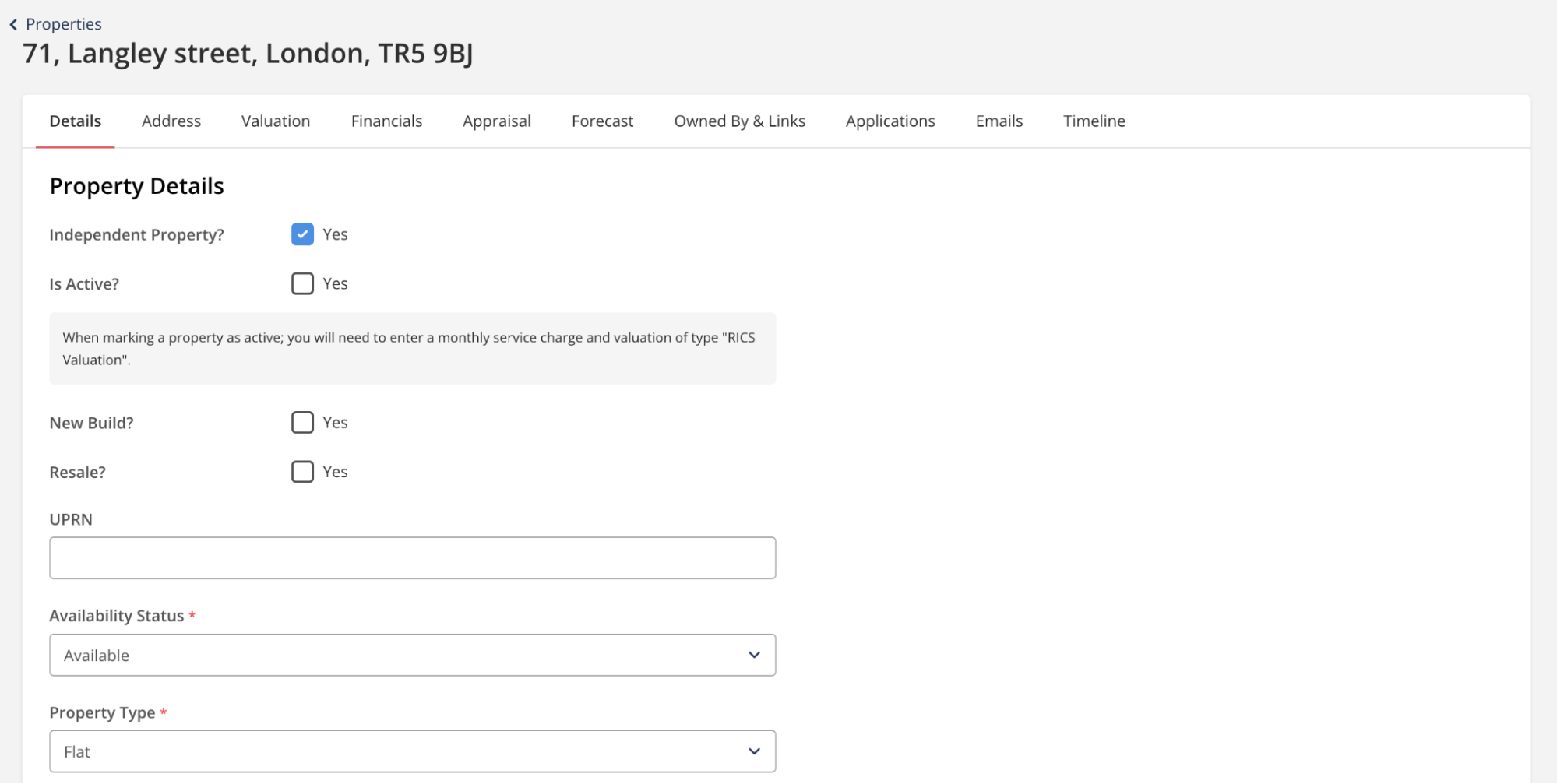
To view a property, select the Actions button and click on View Property. To update property details, users can interact with the various tabs seen below.
# Sales type
The list below is an example of the sales type currently on the Process Engine.
- Resales
- Owned private sale
- Staircasing
- Right to Buy
- Lease extension
- Right to Acquire
- Void Homeflex
- Resident Homeflex
The overview for sales types lists the properties related to that specific sales type. Where there are differences in the overview, this will be related to factors that are displayed when wanting a snapshot. For example, OMV expiry date, seller, buyer, owner and current share (%).
Creating a new property is reserved for sales types that require an owned property and users must search for an existing address, seller or vendor. To get started, select the +Add Property button found in the top right-hand corner.
If the property, vendor or seller already exists on KPro, users can select one of the two options:
- Confirm to open the ‘New Property’ form relating to the sales types as there hasn’t been one created as of yet.
- View to view the existing transaction related to the sales type.
If the property, vendor or seller does not exist on KPro:
- The process engine will highlight this as No Results Found.
- Users can then use the New Property button to create a new property.
# Reports
Home to bespoke reports where users can filter, download and print reports.
# Email campaigns
The email campaign tool is used to send out marketing material to applicants. To add a new campaign select the +Add Email Campaign located in the top right-hand corner. For a more detailed overview of email campaigns, please click here.
# Documents
Documents are where the letter, email and library templates are managed. For a more detailed overview of documents, please click here.
# Admin
This section is restricted to those with an admin role and allows them to manage roles and teams