
# Task progression
There are several types of tasks required when progressing a sale. These tasks are typically related to emails, letter previews, milestones, approval requests and action prompts.
For all tasks, users can use the Actions or Complete button to progress the tasks.
# Managing attached documents
To add an attachment select the +Add Attachment button. To override*, preview or delete an attachment, select the icons seen below; and when using the override option, users should follow the onscreen instructions.
Left to right: Preview, Remove, Override

*When overriding an attachment, the merge fields on the original template are removed. Therefore, should a value that required a merge field, (i.e. monthly rent), be updated on the Process Engine, the attachment will not pull through the values automatically.
# Managing milestones
The milestone tab is a list of milestone dates set for a workflow, oftentimes used to keep a trail of when actions or future actions are set to be completed. They can be amended using the SET DATE button.
# Navigating the timeline
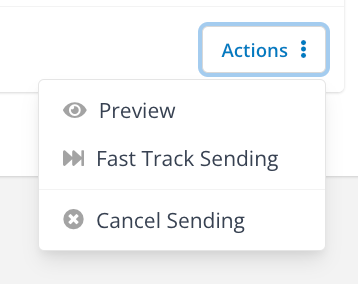
The timeline keeps a trail of all correspondence sent to the applicant & documents uploaded on the application by a user. To interact with the items, users should use the Actions button.
Once an email is sent the timeline automatically displays this alongside any attachments on the email. There is about a 15-minute delay in the sending of emails and within this window, users can either decide to cancel or fast-track an email.
Additionally, users can upload excel files, notes & pictures. File types accepted are as follows:
- PNG
- XLSX
- JPEG
- DOCX